
Technical guide · Image generation with Qwen
Qwen Image 2.1 TurboFrom a prompt to your first image
Deploy Qwen Image 2.1 Turbo on QDivZero and generate images in your browser or with Python. A step-by-step guide with prompts, screenshots and downloadable code.

Guide contents7 sections
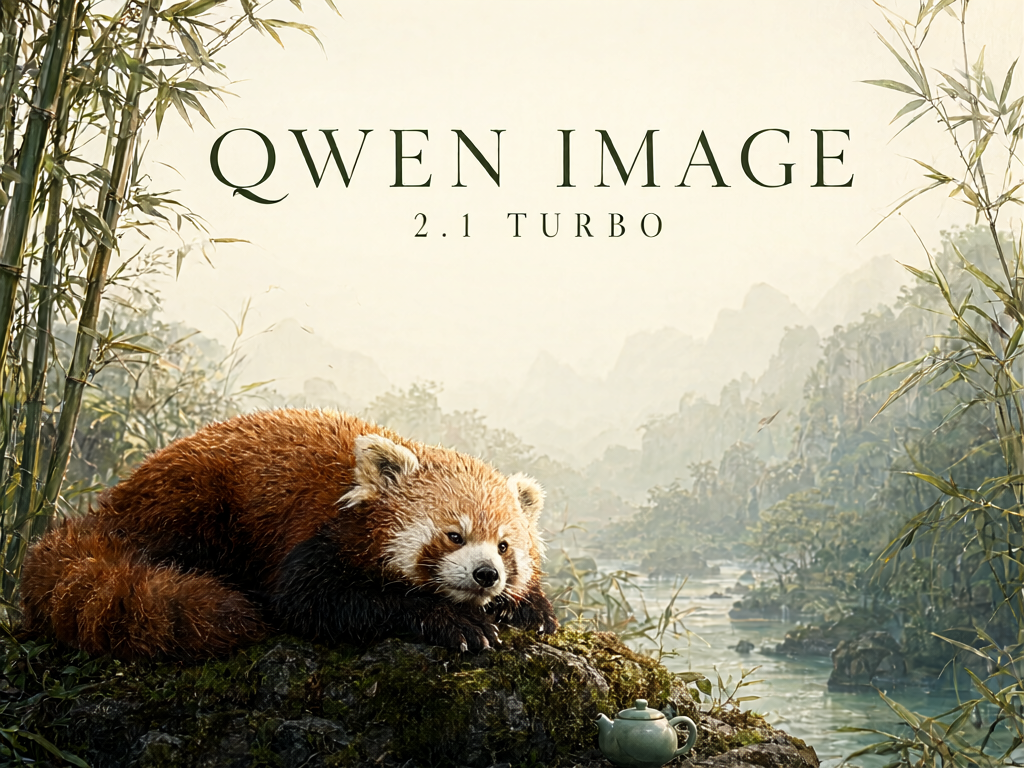
A product photo, a poster with text and a transparent illustration. We will create all three with Qwen Image 2.1 Turbo on QDivZero, starting in the browser and then using a Python script. Every image in this guide, including the cover, came from the model through QDivZero. Click the images within the steps to open the slideshow. You can also download the original PNG files.
The model runs on your deployment's GPU. Your computer sends the text and receives the result, so it does not need a graphics card or a PyTorch installation. QDivZero prepares the inference server and gives it a serving name that you can use in API calls.
You need an account with credit to cover GPU time. For the code examples, we will use Python 3.11 or later, an API key and your QDivZero account ID. You can start in the browser and leave Python for later.
1. Deploy Qwen Image 2.1 Turbo
- Open Deployments and click Deploy model.
- Choose the manual model picker and search for
Qwen/Qwen-Image-2.1-Turbo. Select that repository and continue to Pod. - Use Smart scheduling to let QDivZero find compatible GPU capacity. The page shows the estimated memory requirement and current offers.
- To run the model in Europe, select only Europe and clear No region. Enable interruptible capacity to include Spot offers if you can accept an interrupted session. Leave it disabled if you need to avoid that possibility.
- Set the Maximum price per hour you accept. This limits the offers the scheduler can choose; total spending also depends on how long the instance runs.
- Under Scheduling, you can add a Stop rule for the time you expect to finish. The time zone appears beside the cron expression.
- Under Configuration, name the deployment
Qwen Image Turbo. Leave Serverless and Replica set disabled for this first test. - Under Review, enter
qwen/qwen-image-2.1-turboas the Model name. This is the value you will send in the API'smodelfield. - Click Deploy model. Once it appears in the list, open its row and choose Model status → Start model.
- Wait until it is ready. During startup, the server is still being prepared; appearing in the deployment list does not mean it can already generate images.
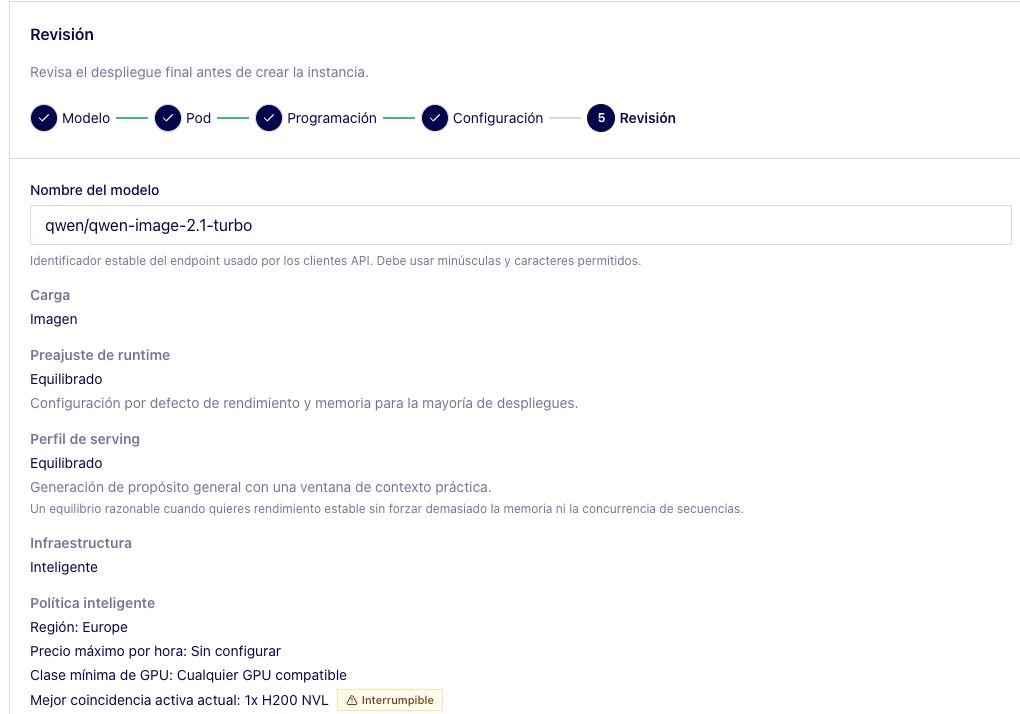
During our tests, Spot interrupted the machine and the endpoint returned to Pending. We waited for QDivZero to relaunch it and continued generating with the same serving name. If this happens during your session, wait until the deployment is active again before repeating the prompt.
You can choose a different name. Replace qwen/qwen-image-2.1-turbo in the workbench model picker and in the code examples if you do.
Qwen Image 2.1 Turbo's license is the Qwen Research License. It permits non-commercial research and evaluation; commercial use requires a separate license. Deploying the model on QDivZero does not change those terms.
2. Generate your first image in the browser
Open Developers, select the Image task and choose qwen/qwen-image-2.1-turbo under Model. This is the endpoint you just created.
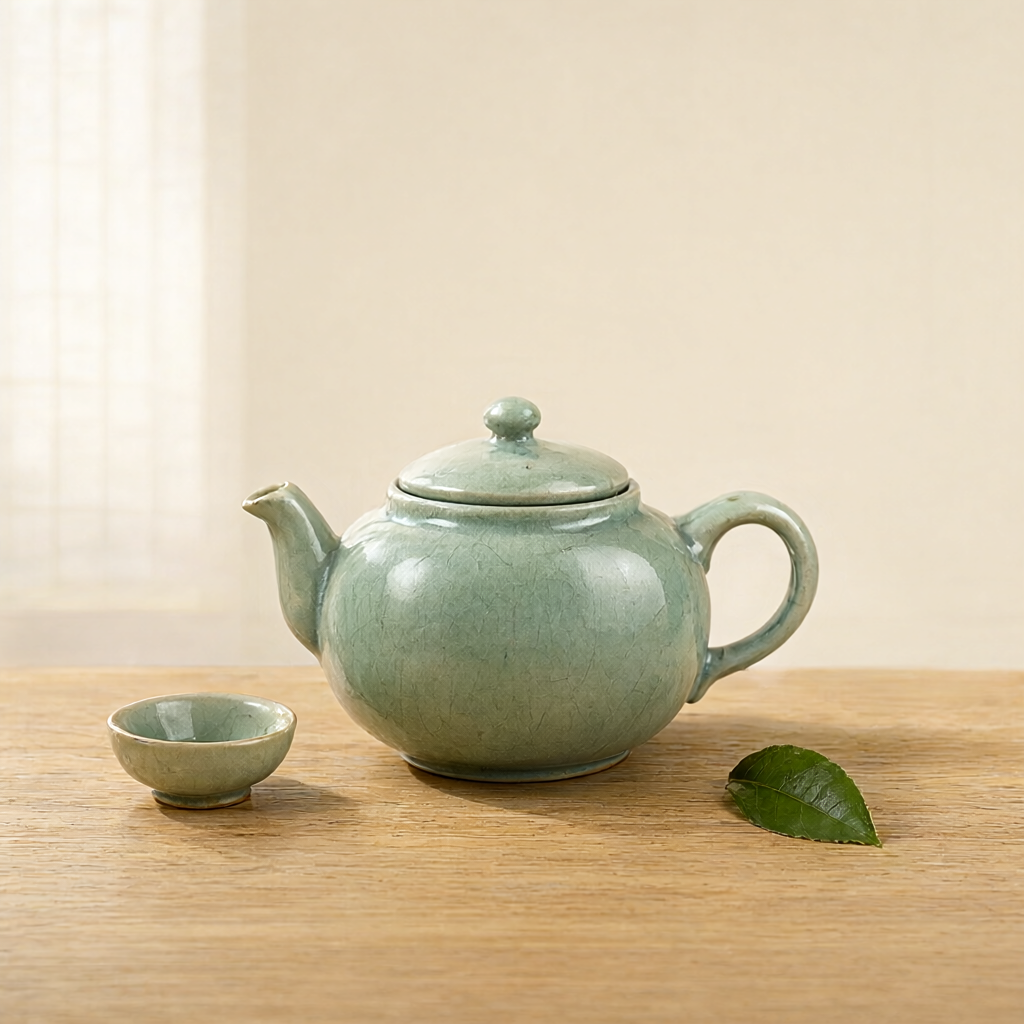
We will ask for a photograph of a ceramic teapot. It gives us a simple subject for looking at shape, reflections and lighting. Copy this into the Prompt field.
1Editorial product photograph of a handmade celadon ceramic teapot on a pale oak table, a small cup and a fresh green tea leaf beside it. Soft morning light through a paper window, warm ivory background, realistic glaze and fine ceramic texture, subtle shadow, clean composition, no lettering, no logos, square image.
2
Start with these values.
Click Generate and wait for the result on the right. The workbench's View code button shows the request matching the fields you entered.
The Turbo model card describes an eight-step sampling schedule saved with the model. In Qwen's documented implementation, changing num_inference_steps alone does not override that schedule. Leave it at 8 for this test and adjust the prompt first while you work on composition.
The seed helps compare changes within the same environment. It does not guarantee an identical file when the runtime, hardware or model version changes.
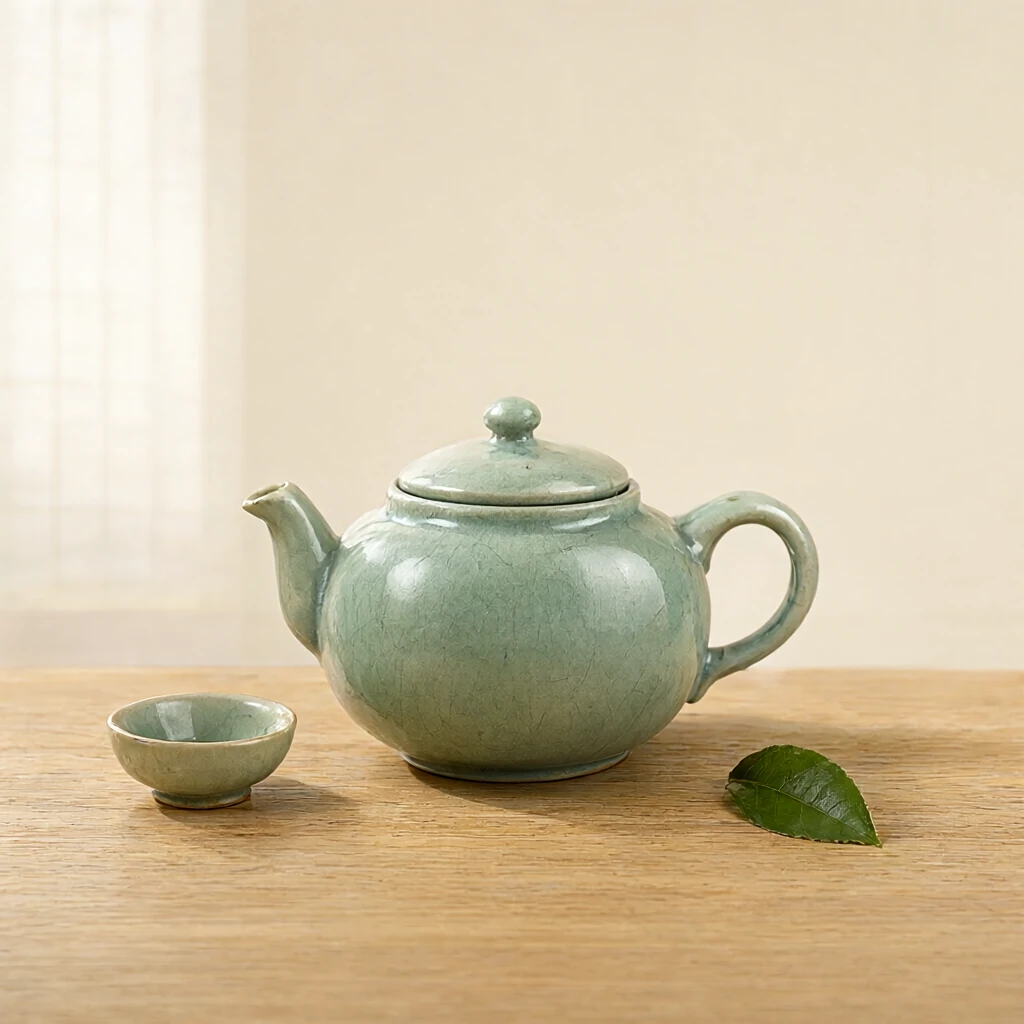
To save it from the workbench, right-click the result and choose Save image as…. Download the file before starting another generation.
3. Write a prompt you can refine
The example describes the object, material, setting and light. That gives you specific things to change one at a time. For a cooler image, replace the morning light with blue studio lighting. If the table dominates, ask for a closer view of the teapot.
Save the prompt with each result. An image helps you choose a style, but without the parameters it is harder to repeat the work or explain how you made it.
A poster with Spanish text
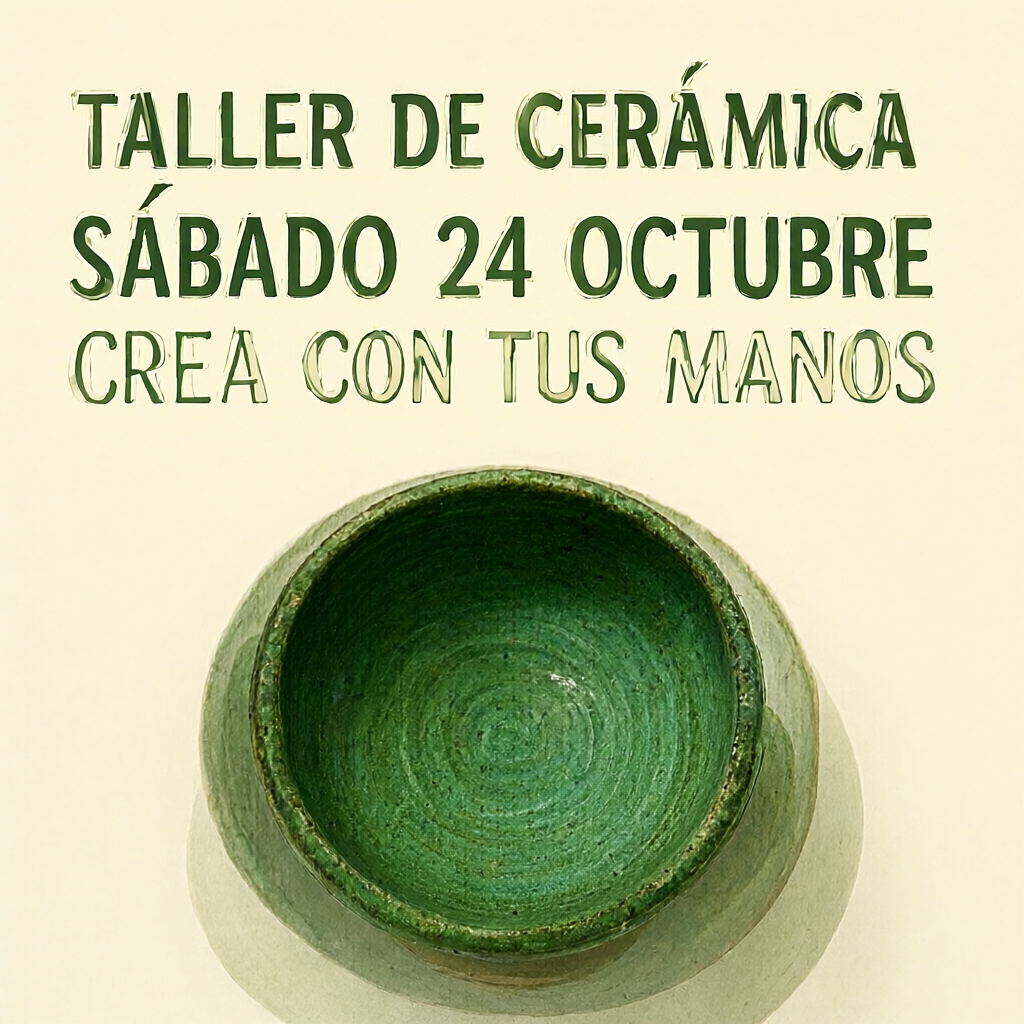
To try lettering and accents, replace the prompt with this one. Keep the first example's size, steps and seed.
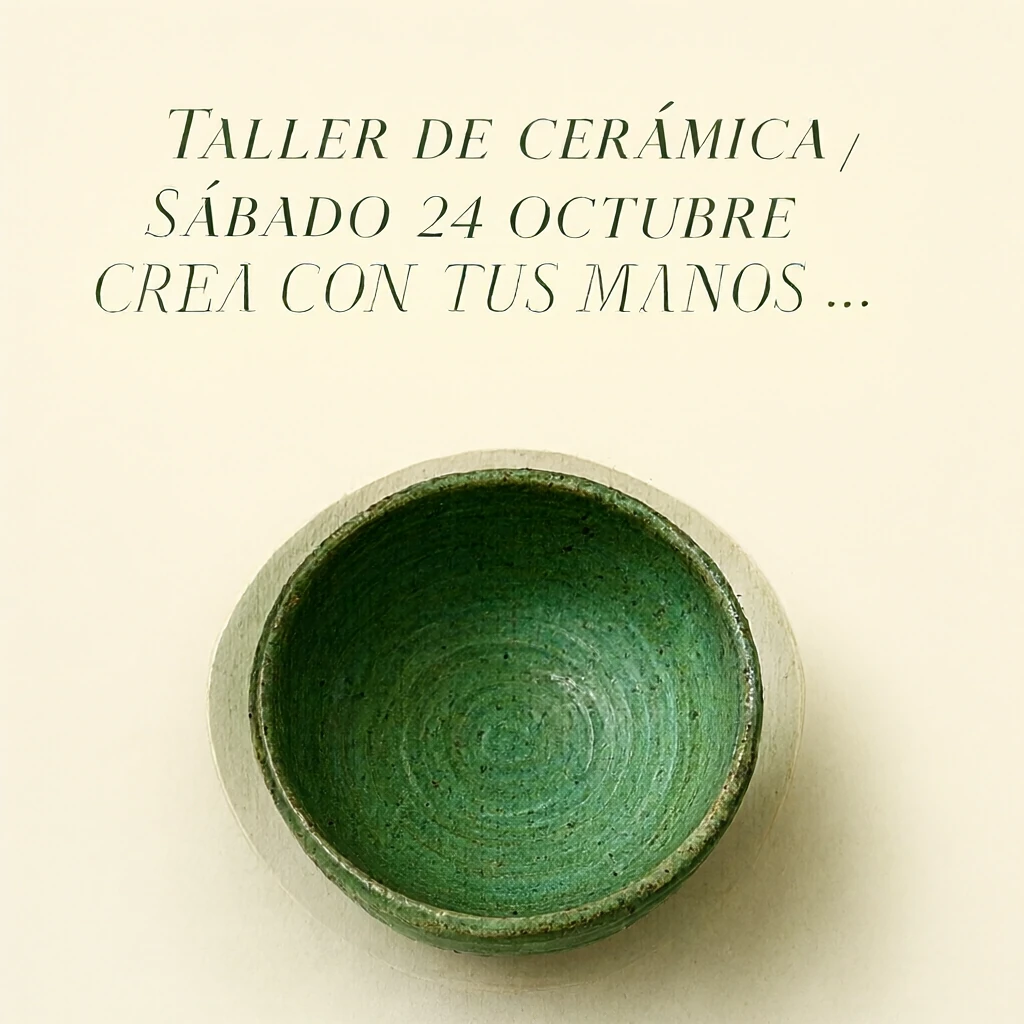
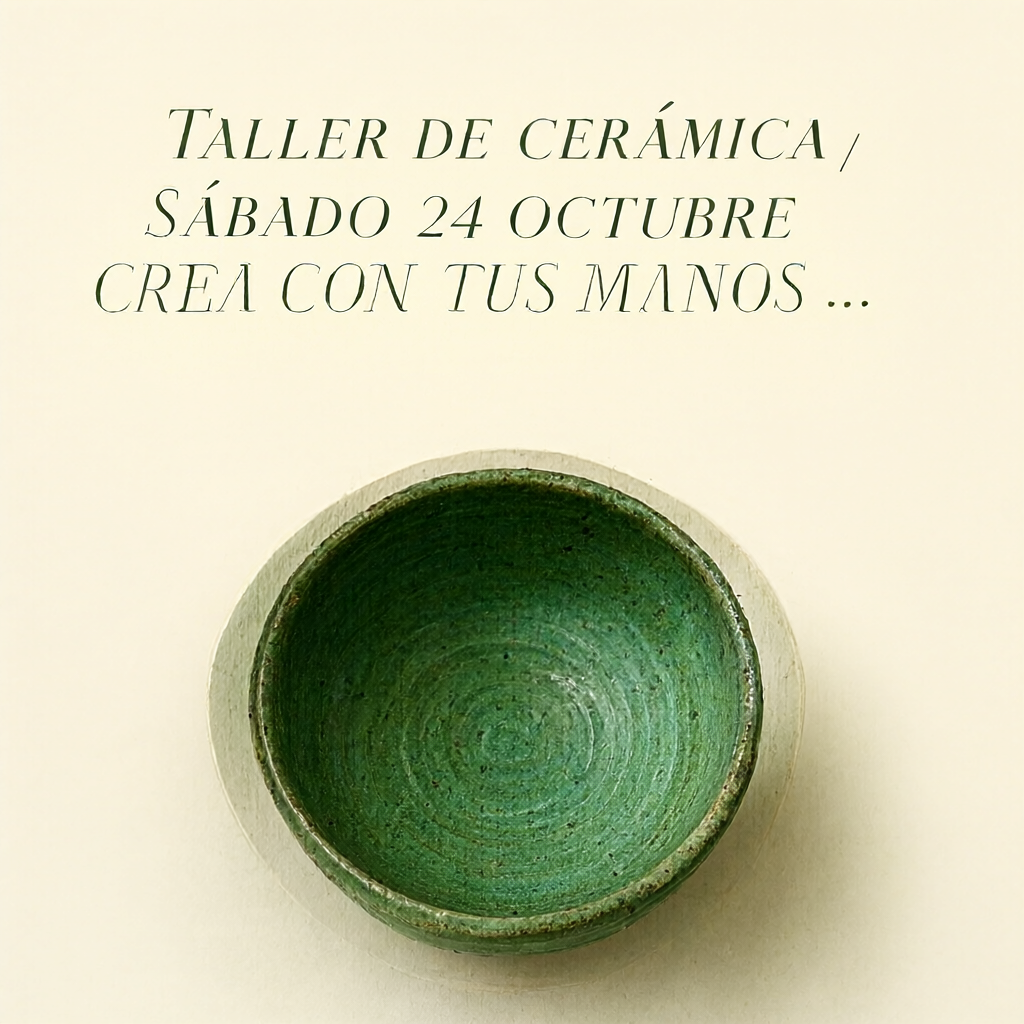
1Design a square poster for a small ceramics workshop. Warm cream paper, a large handmade green ceramic bowl photographed from above in the lower half, generous empty space. In the upper half, print exactly these three lines in clear dark green lettering: TALLER DE CERÁMICA / SÁBADO 24 OCTUBRE / CREA CON TUS MANOS. Preserve the Spanish accents. Elegant editorial layout, readable type, no other text, no logos.
2
The first image preserves the accents in “CERÁMICA” and “SÁBADO”, but it also prints one of the slashes used to separate the lines and adds dots at the end. Our prompt left room for that interpretation.
For the second version, we use actual line breaks, ask for clearer lettering and remove the ambiguity about punctuation. Size, steps, guidance and seed stay the same.
1Design a square poster for a small ceramics workshop. Warm cream paper, a handmade green ceramic bowl seen from above in the lower half. Use large, clear dark green sans-serif lettering in the upper half. Print only the following three lines, one line per paragraph, preserving every Spanish accent:
2
3TALLER DE CERÁMICA
4SÁBADO 24 OCTUBRE
5CREA CON TUS MANOS
6
7No slashes, no ellipsis, no punctuation after the words, no additional text, no logos.
8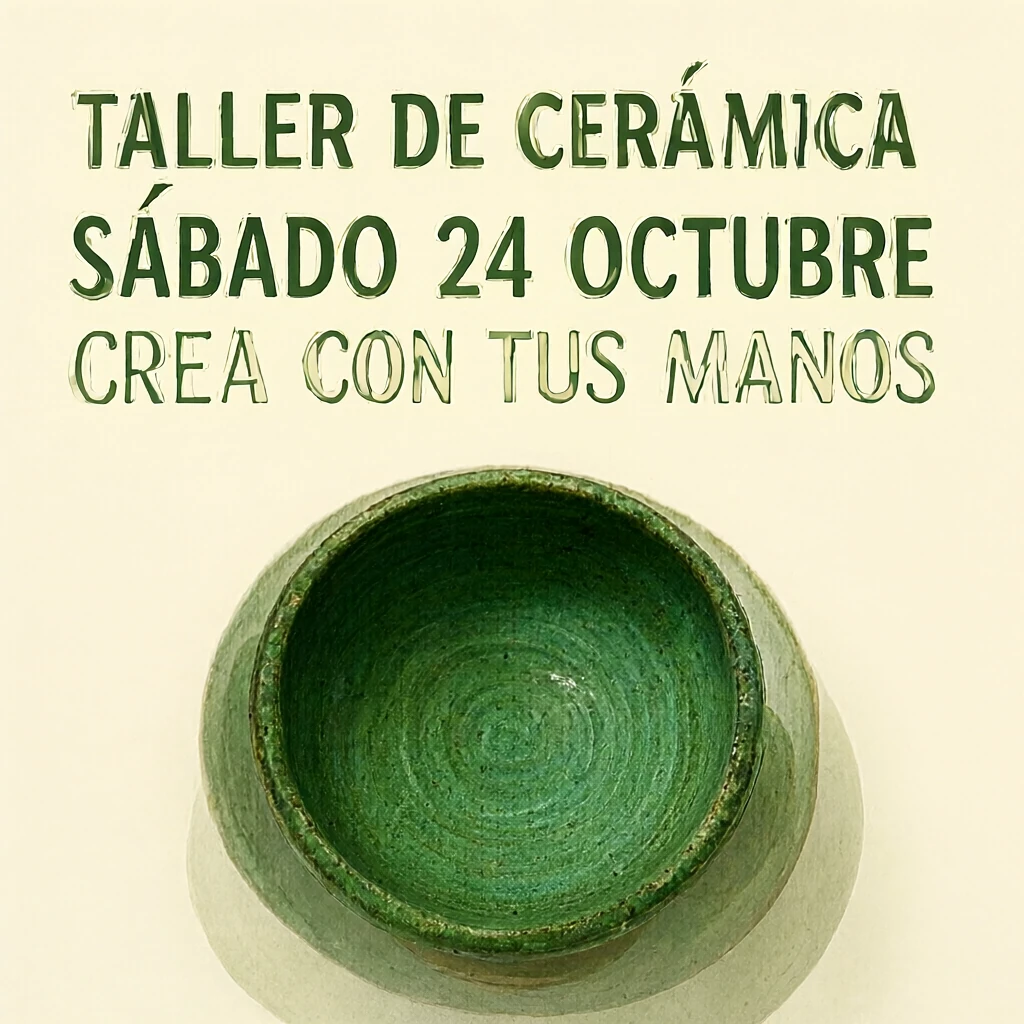
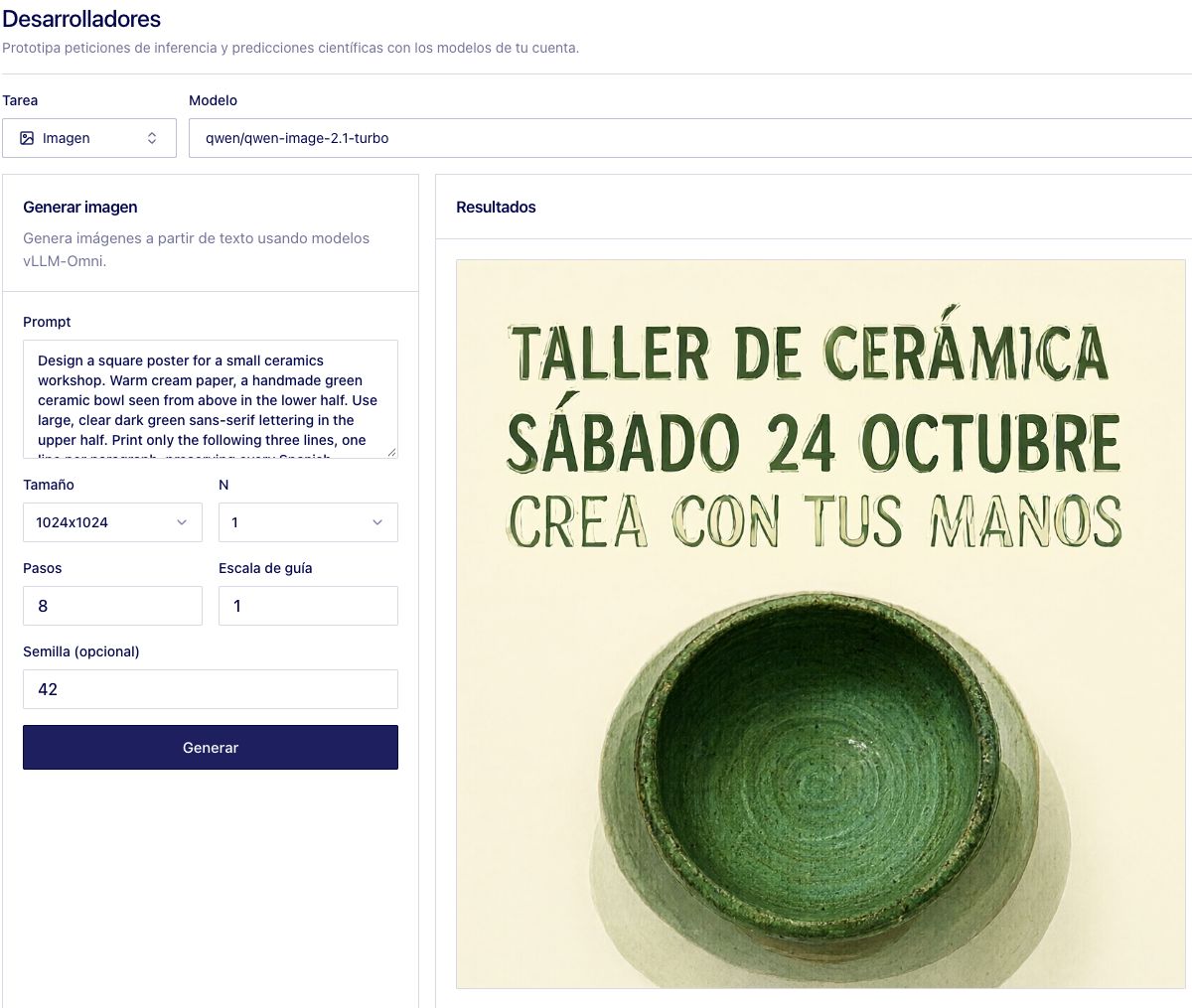
Read the text and inspect fine strokes before using a final poster. For exact typography, generate the background and add the lettering in your editor.
An illustration with a transparent background
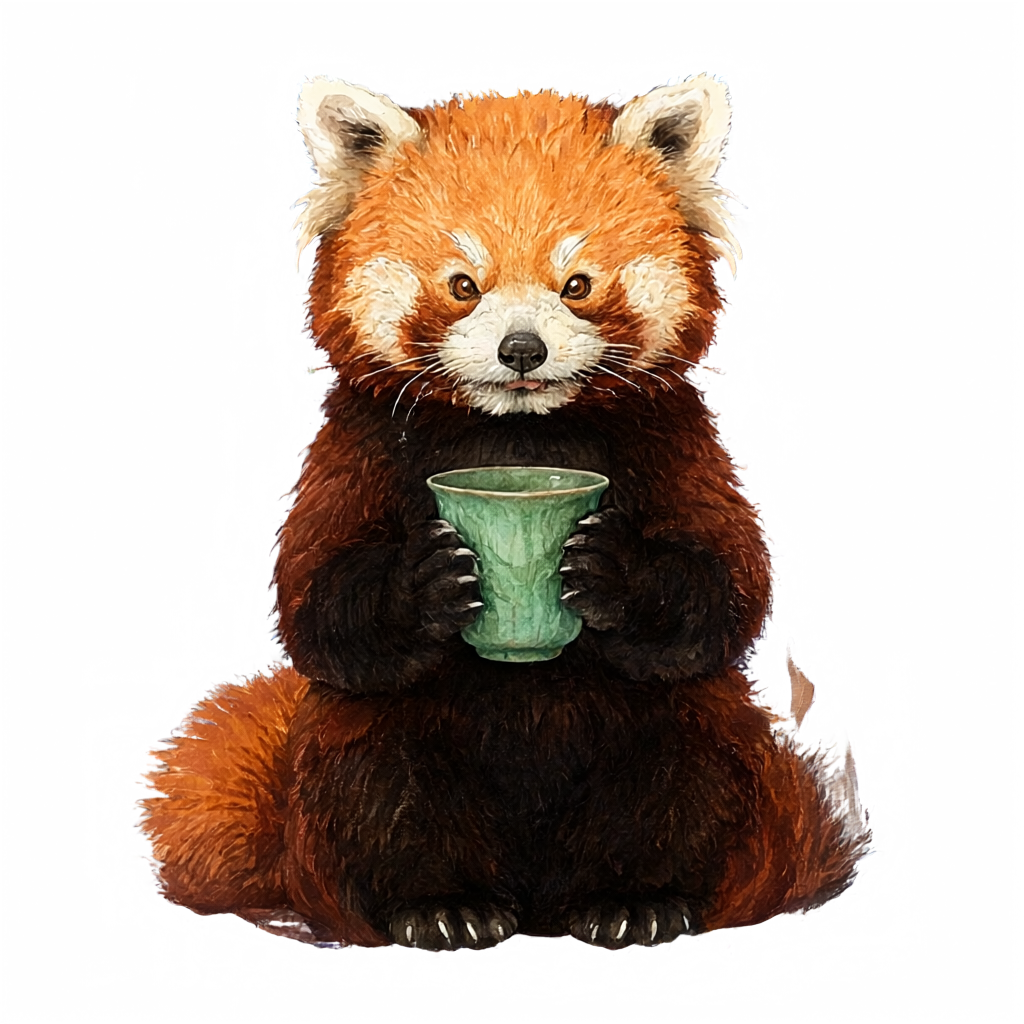
This prompt requests a red panda holding a cup and asks for an alpha channel.
1This is an RGBA image with transparency. A small red panda sitting and holding a handmade celadon ceramic cup with both paws, full body visible, charming detailed watercolor illustration with clean edges, warm terracotta fur, sage green cup, centered composition, no text. The image has alpha channel and the background is transparent.
2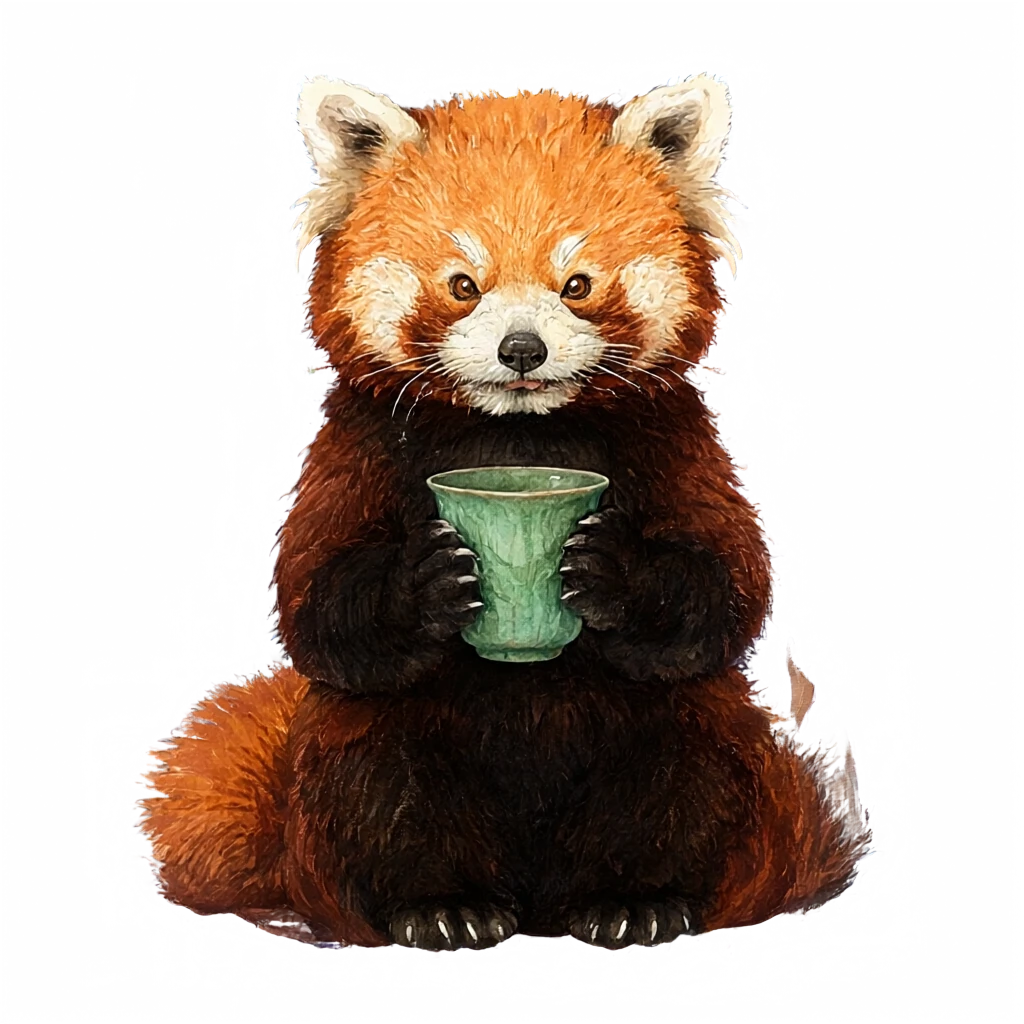
The returned file is RGBA, with roughly 59% of its pixels below 10 on the 0–255 alpha scale. You can place it over another background without cutting out the panda. Keep it as PNG or WebP; JPEG does not preserve transparency.
Download originals: teapot · first poster · revised poster · transparent panda · cover
4. Save an image from Python
Download generate_image.py and prompts.json into the same folder. The script uses Python's standard library and saves both the image and a JSON file with the request and its duration.
Download the Python script · Download the prompts
Open a terminal in that folder and set your key and account ID. You can find the selected account's X-Account-Id value under Developers → View code. Keep the key out of your repository.
1export QDIV0_API_KEY='YOUR_API_KEY'
2export QDIV0_ACCOUNT_ID='YOUR_ACCOUNT_ID'
3
4python3 generate_image.py \
5  --model qwen/qwen-image-2.1-turbo \
6  --example product \
7  --steps 8 \
8  --output results/teapot
9
The command writes results/teapot-1.png if the response contains a PNG, plus results/teapot.json with the parameters. If the server returns JPEG or WebP, it preserves that format and uses the matching extension. Choose a new output prefix for each run to keep your earlier results.
Use --example poster, --example poster_refined or --example transparent for the other examples. For the cover, use --example cover --size 1024x768. All prompts are in prompts.json. The metadata file records the full prompt, endpoint name, size, seed and elapsed request time. It does not store your API key.
The request QDivZero receives
The script sends a POST to https://api.qdiv0.com/v1/images/generations with these headers.
1Authorization: Bearer YOUR_API_KEY
2X-Account-Id: YOUR_ACCOUNT_ID
3Content-Type: application/json
4
The body has this shape. In your application, replace the prompt text with the description you want to generate.
1{
2  "model": "qwen/qwen-image-2.1-turbo",
3  "prompt": "A handmade celadon ceramic teapot on a pale oak table, soft morning light, no text.",
4  "size": "1024x1024",
5  "n": 1,
6  "num_inference_steps": 8,
7  "guidance_scale": 1,
8  "seed": 42,
9  "response_format": "b64_json"
10}
11
The response contains Base64-encoded images inside data. To write the first one to disk, decode data[0].b64_json; it is not a download URL.
1import base64
2from pathlib import Path
3
4# response is the JSON returned by /v1/images/generations.
5image_bytes = base64.b64decode(response["data"][0]["b64_json"])
6Path("image.png").write_bytes(image_bytes)
7
The downloadable script identifies the image format before choosing the extension. It also records elapsed request time, which includes upload, waiting and download; this is not GPU compute time alone.
5. Stop the instance when you finish
Return to Deployments, open the model's row and choose Model status → Stop model. Wait for its state to become Stopped. Closing the browser tab does not stop the GPU.
For work sessions, you can use a Scheduling rule to stop at a fixed time. Alternatively, enable Serverless in the configuration to start on demand and stop after an idle period. Enabling it removes existing scheduling rules, so choose the behavior you want.
Starting on demand takes time. If you need several images, generate them in the same session to use the model while it is already loaded.
Generation time and cost per image
We measured Turbo on an RTX PRO 6000 S, Spot in Europe, with a displayed price of €0.66/hour on 19 October 2026. We used the teapot prompt, 1024 × 1024 pixels, one image per request, 8 steps and guidance scale 1. After one warm-up image, we repeated the request three times, changing only the seed.
Timing starts when Generate is clicked and ends when the generating state finishes and the new result is visible. It includes submission, inference, transfer and the interface; it is not GPU-only timing. These were three sequential requests, with no concurrent traffic generated by this test. Download the measurements and parameters.
Allocating the hourly price to those seconds gives this approximate cost during generation.
1€0.66/hour × 3.155 seconds ÷ 3,600 = €0.00058 per image
2
That is about 0.058 euro cents per image. At the same rate, 1,000 images would use about €0.58 of generation compute. This extrapolates from the three measurements; Spot pricing, dimensions, prompts and server load can change the result.
Startup and pauses also count
In this session, we observed the Active state about five minutes after requesting startup. That time is excluded from the mean above. At €0.66/hour, five minutes of compute costs €0.055, before spreading it across the images you produce.
If you start the instance for one image and stop it as soon as the result arrives, a scenario with a five-minute startup would cost about €0.056. A batch of one hundred images with the same startup and no pauses would average about €0.00113 per image. Both are examples at the stated rate, not billed totals from this test.
For your session cost, divide the cost of all billable time by the images obtained. That includes startup, pauses and any Spot recovery time. The script records each request's duration so you can repeat the measurement with your GPU and prompts.
If a request does not return an image
The script does not automatically resend a timed-out request. You can decide whether to repeat it after looking at the instance's state.